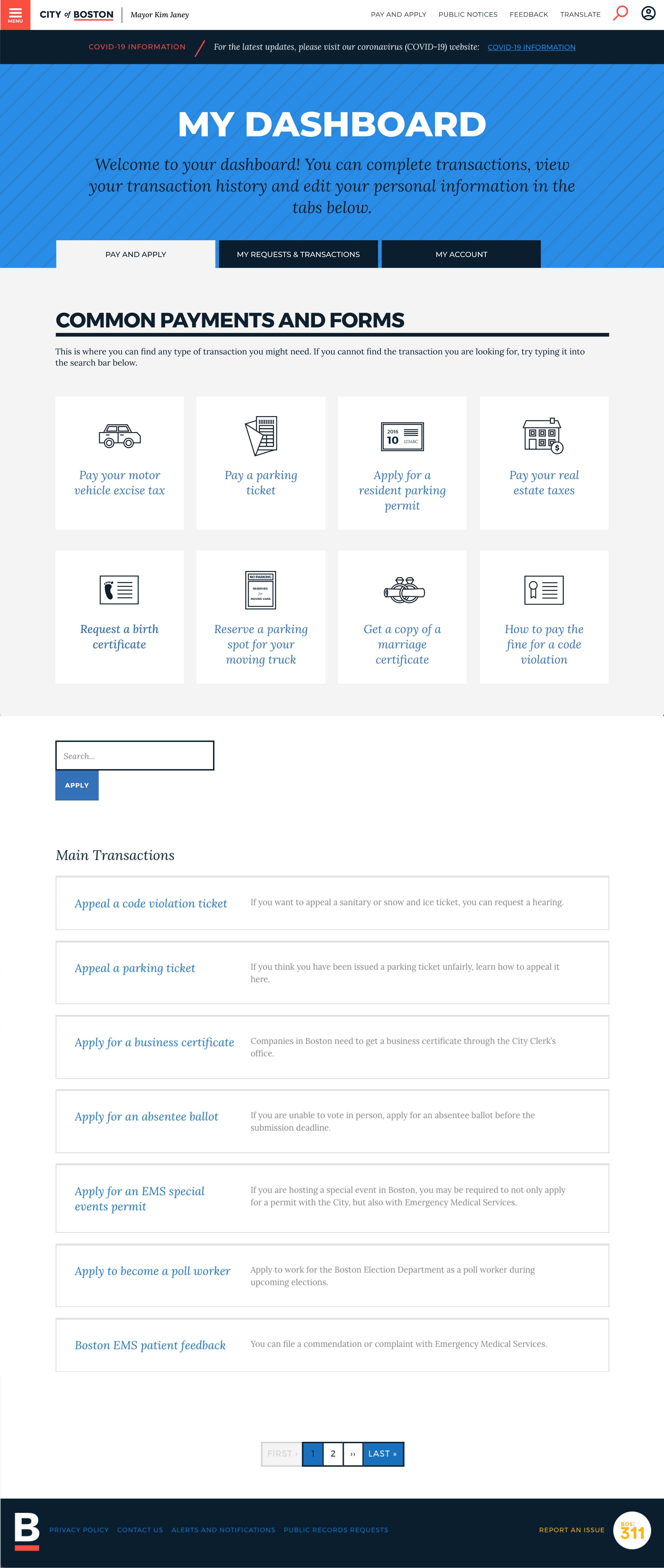
Adding a user dashboard feature to the City of Boston website
In 2016, Boston.gov was totally redesigned by IDEO to be more modern and citizen-centric. Along with the website, they want to start bringing all services available online to citizens. They also want to provide citizens with the ability to manage everything related to their governmental interactions in one place. In the future, they hope to make it easy to apply for any local service online (while retaining the option to do it in person or by other channels).
There is no central location for which users of Boston.gov can track and manage all their past and current government services.
UX/UI Designer and Researcher
4 weeks
Because of strong public opinions of government institutions, I felt it was especially important to begin this project by outlining all of my own assumptions about government websites before starting my research. By outlining my assumptions, I could then set out to validate them in my research and uncover any biases I might have towards potential solutions.
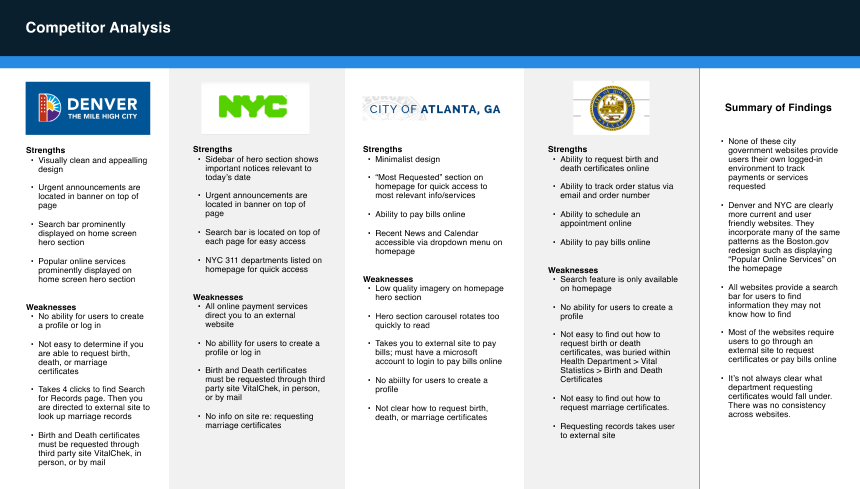
In order to get a better understanding of government websites in general and see how other governments provide online services for their citizens, I analyzed 4 city government websites. I chose to analyze a variety of major city government websites from all over the country - Denver, New York, Atlanta, and Houston. I also choose the Denver and New York websites because they have been touted as some of the best designed government websites.
Some key findings:
I created a survey using Google Forms to validate my initial assumptions before recruiting users for 1:1 interviews.
Out of 15 participants, ages 18 and up:
I then conducted remote 1:1 interviews using Google Meet in order to have more in depth conversations with the users about their needs, pains and goals.
Among 5 participants, age 18 and up:
Boston.gov currently provides users with a list of 30 online services to select from. The current design from IDEO displays the 8 most common services on top followed by a long list of the remaining services, and the option to input keywords in a search bar. To gain any insight in how I might better organize these services on the user dashboard, I recruited 10 participants, ages 18 and up to participate in a remote card sort using Optimal Sort
Some key findings:
* I initially thought that by conducting a card sort, I would be able to organize Boston's online services into a shorter list of categories for users to select from. However, there was hardly any agreement among participants - something that IDEO likely already researched and discovered. I decided instead that it would be best to follow the design pattern established by IDEO in the user dashboard as well. Not only would this help users find information more quickly, but it would create consistency between the dashboard and the rest of the site.
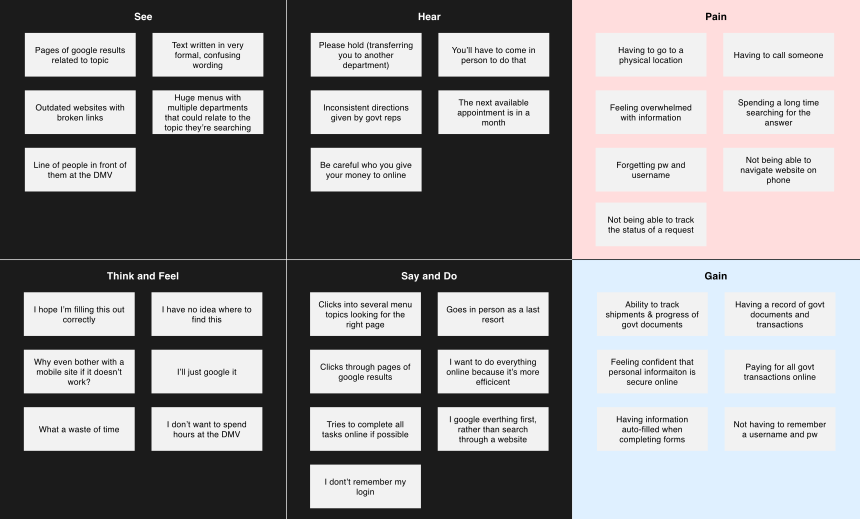
To synthesize my research findings, I created an empathy map; putting myself in the user's shoes so I could begin defining the product in a way that would meet their needs. Click the image below to enlarge.
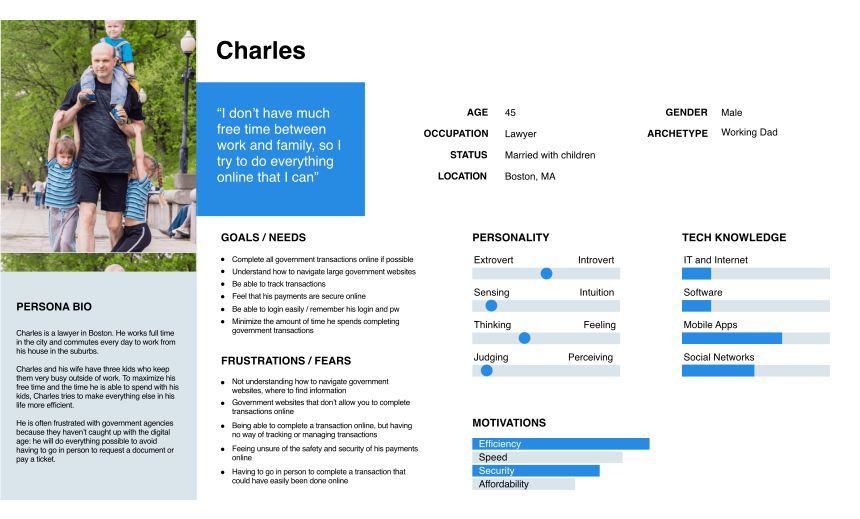
I then created a persona to represent a target user group of the product based on the research I collected. Click the image below to enlarge.
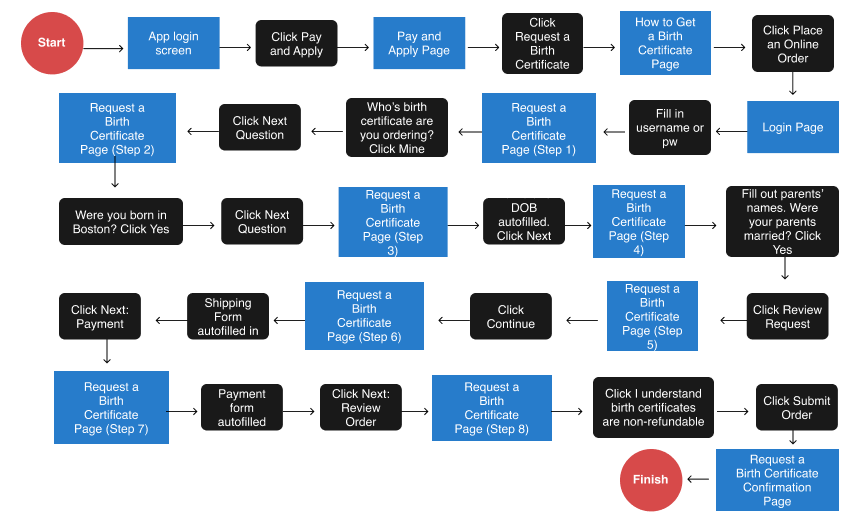
After defining the users and their needs, I began outlining a task flow to demonstrate the user's overall progression for requesting a birth certificate while logged into the dashboard - the task I would assign participants in my user testing.
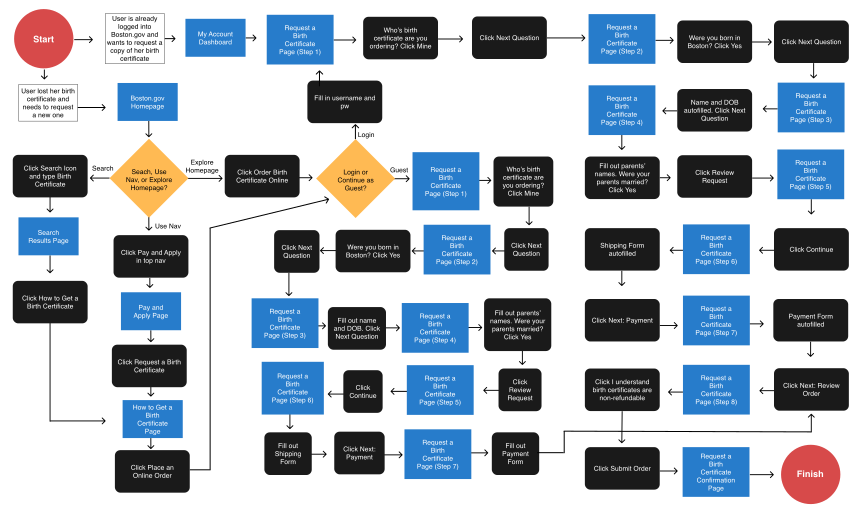
I then created a User Flow, which outlines the various paths a user might take when navigating the site. Because there are many steps involved in requesting a birth certificate, it was crucial to lay out all the steps along the way to confirm which screens would need to be added to the existing flow on the website. Click the image below to enlarge.
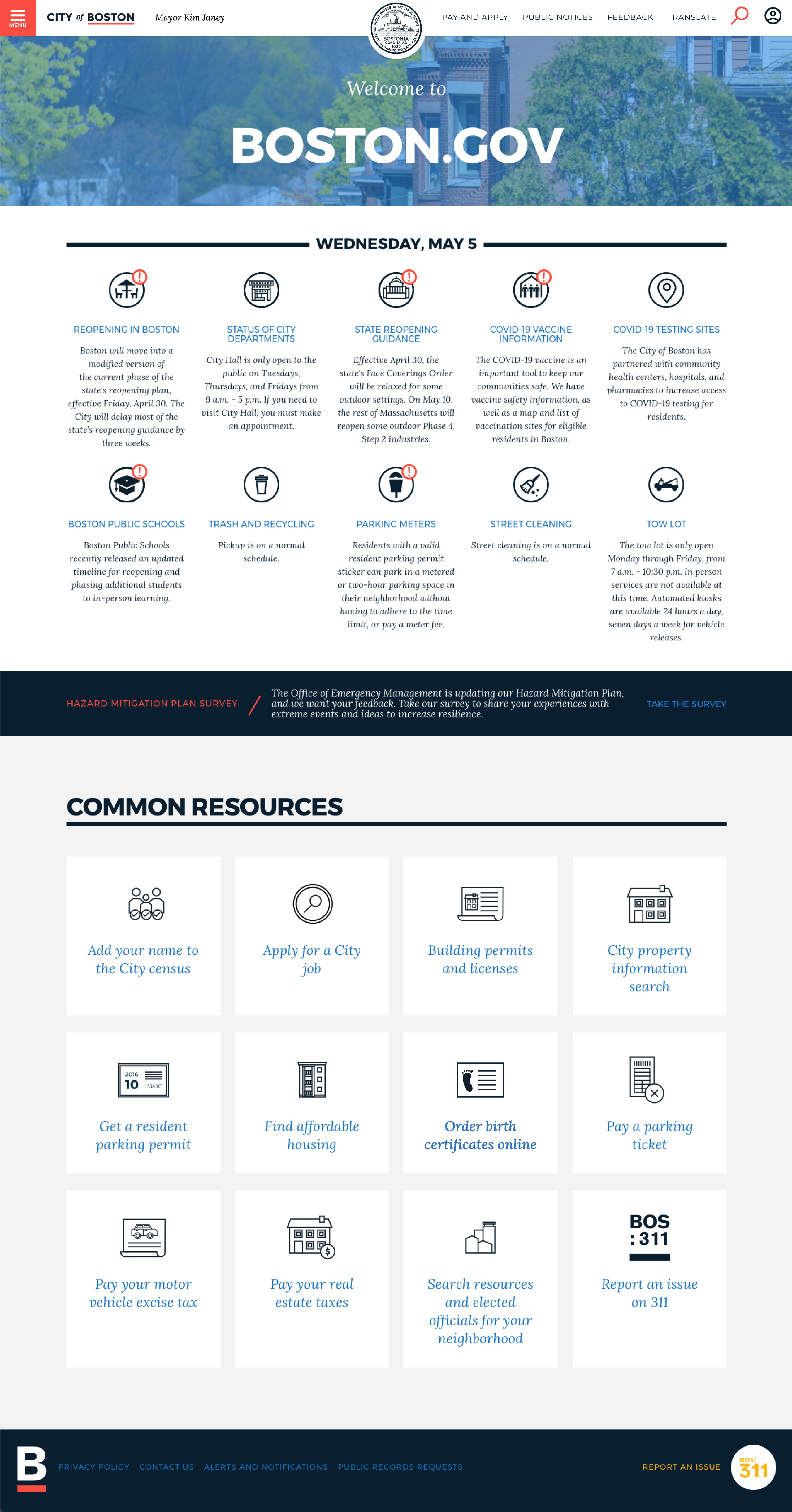
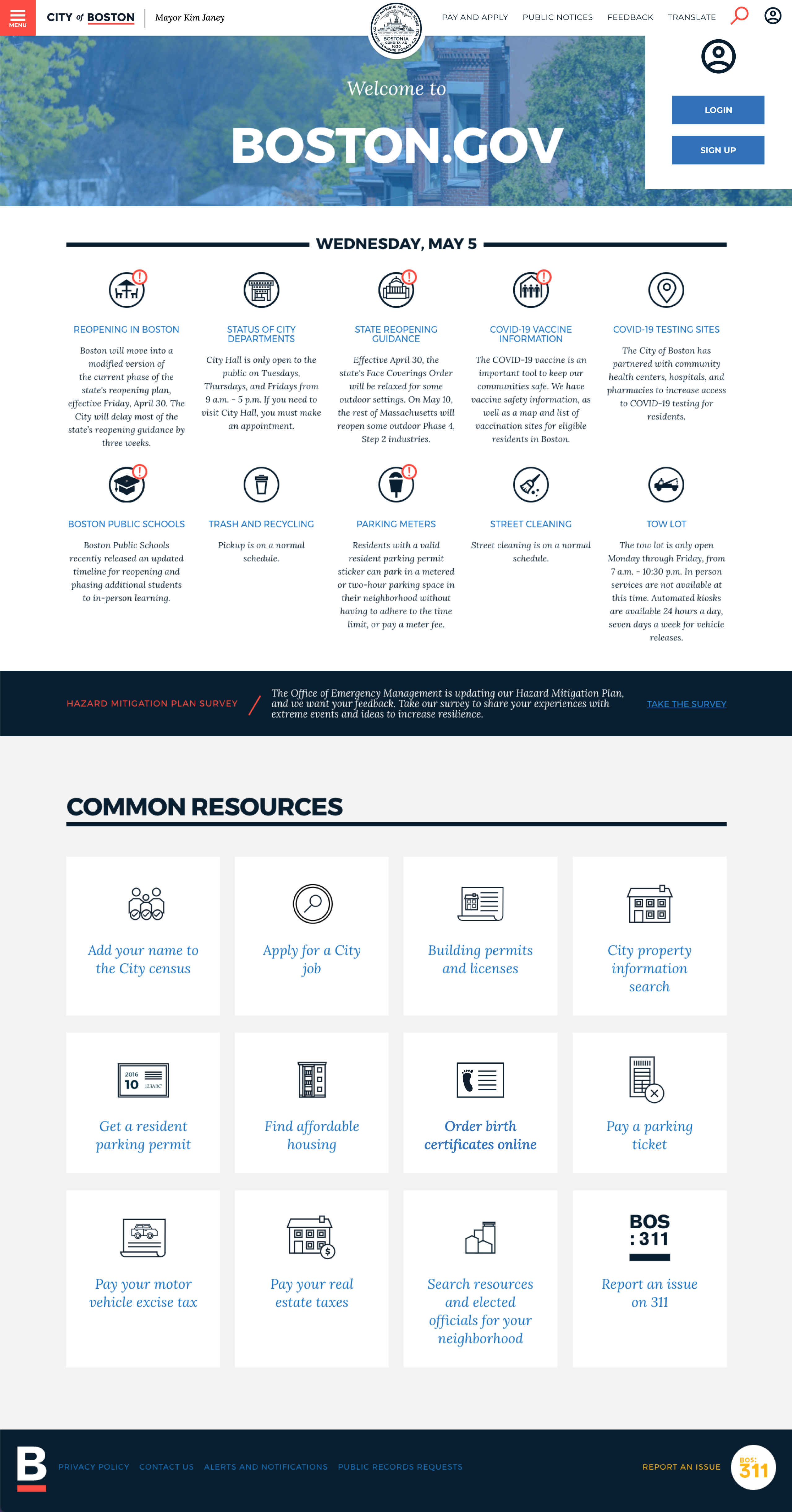
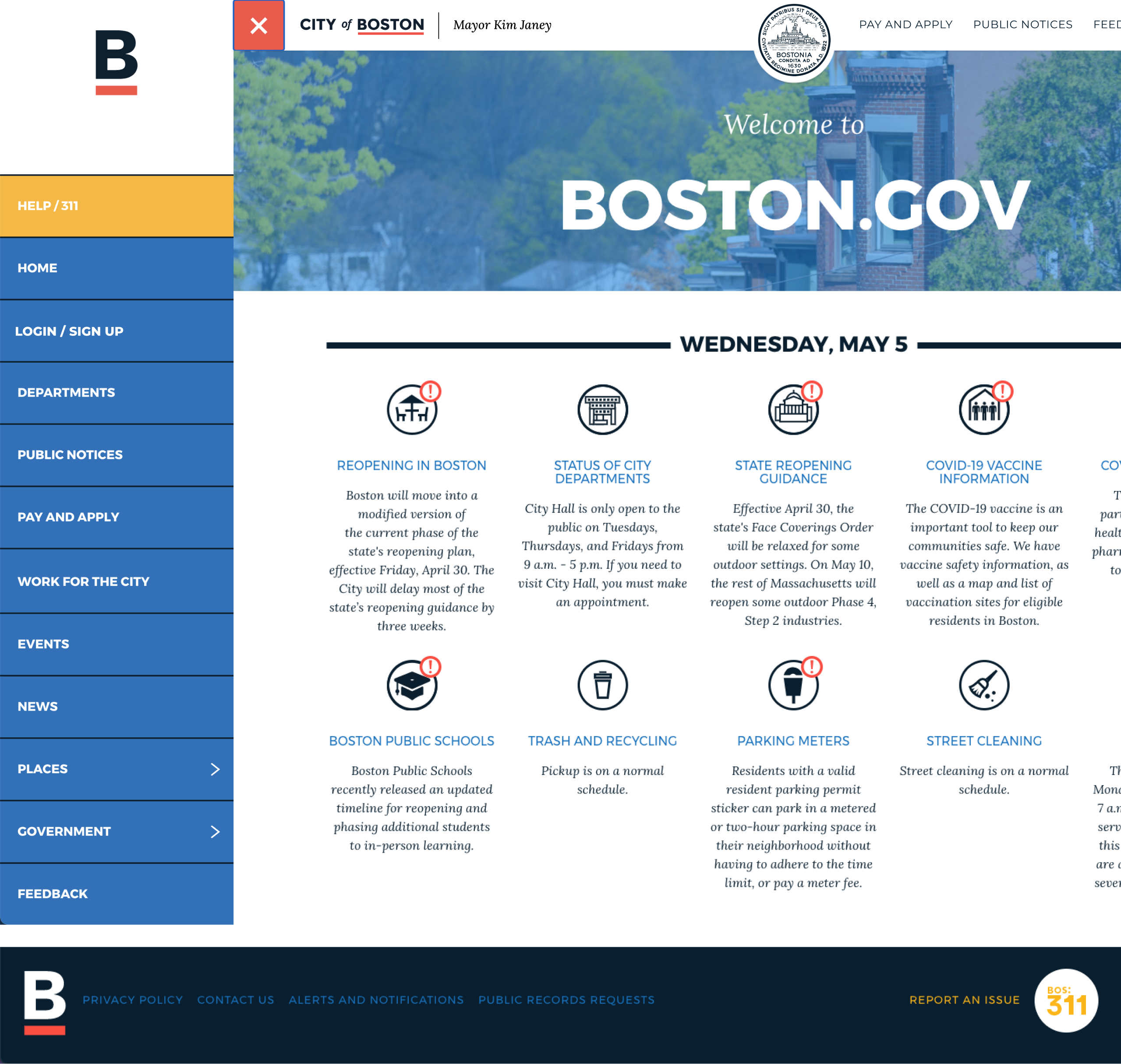
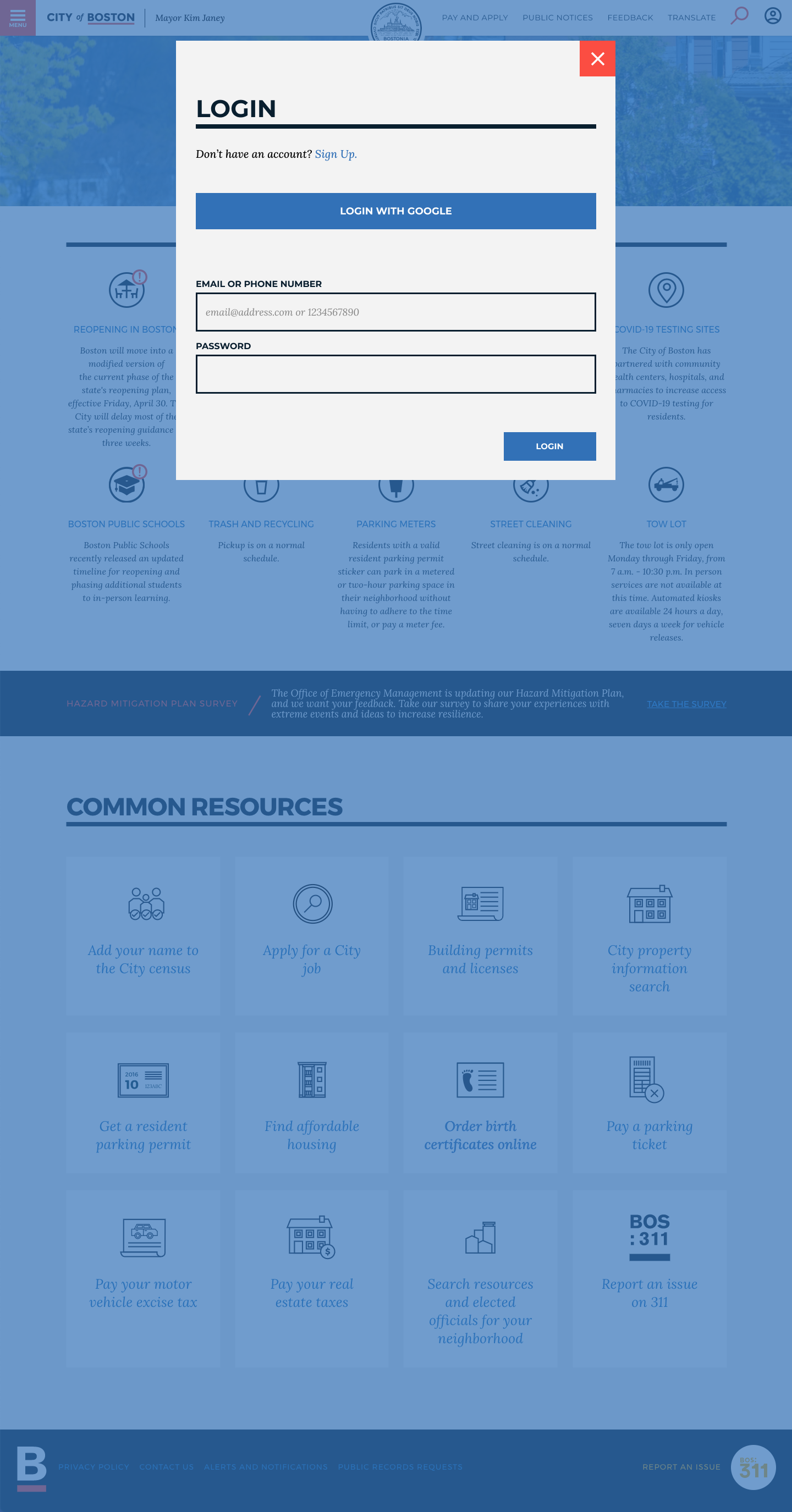
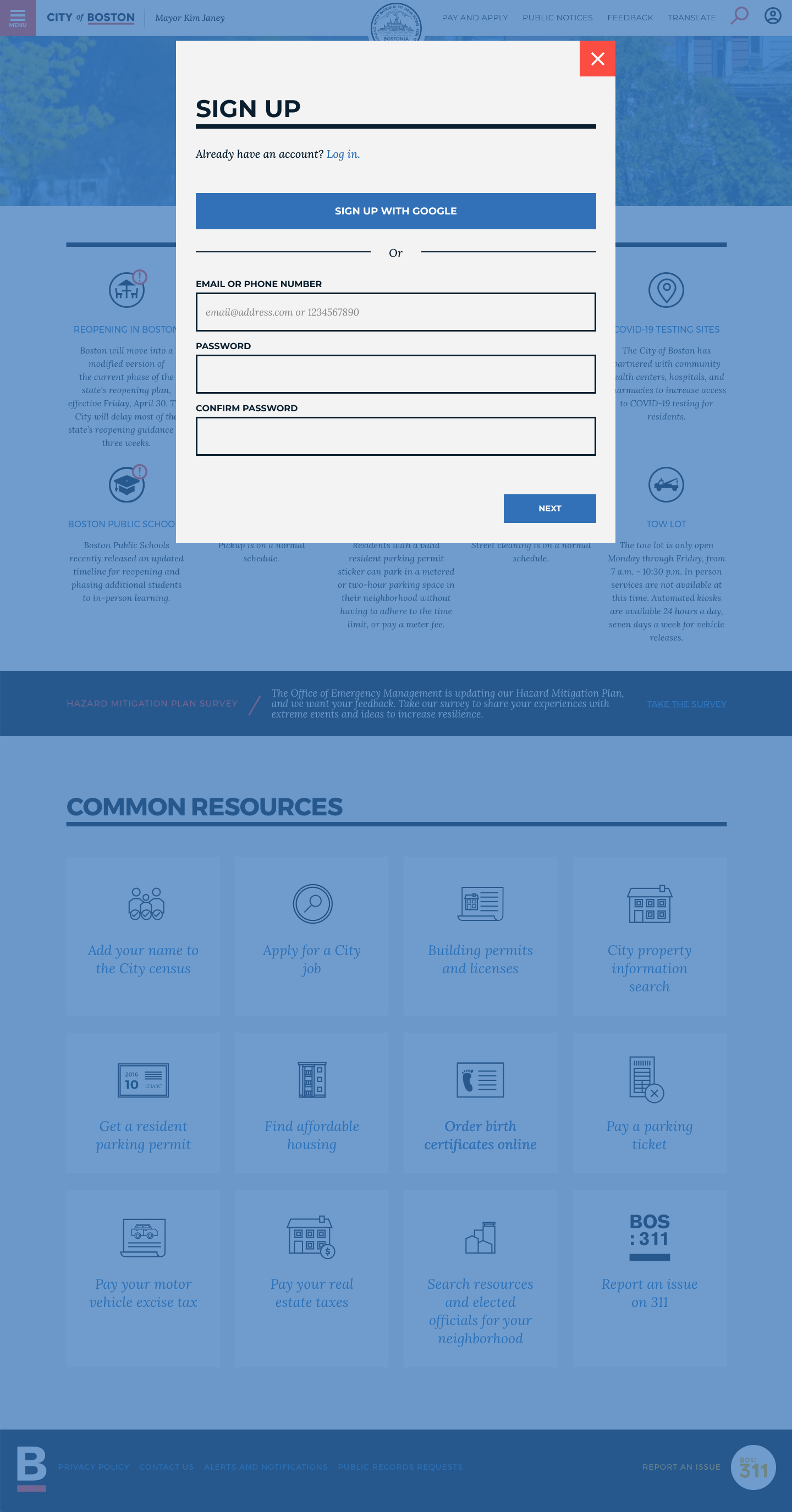
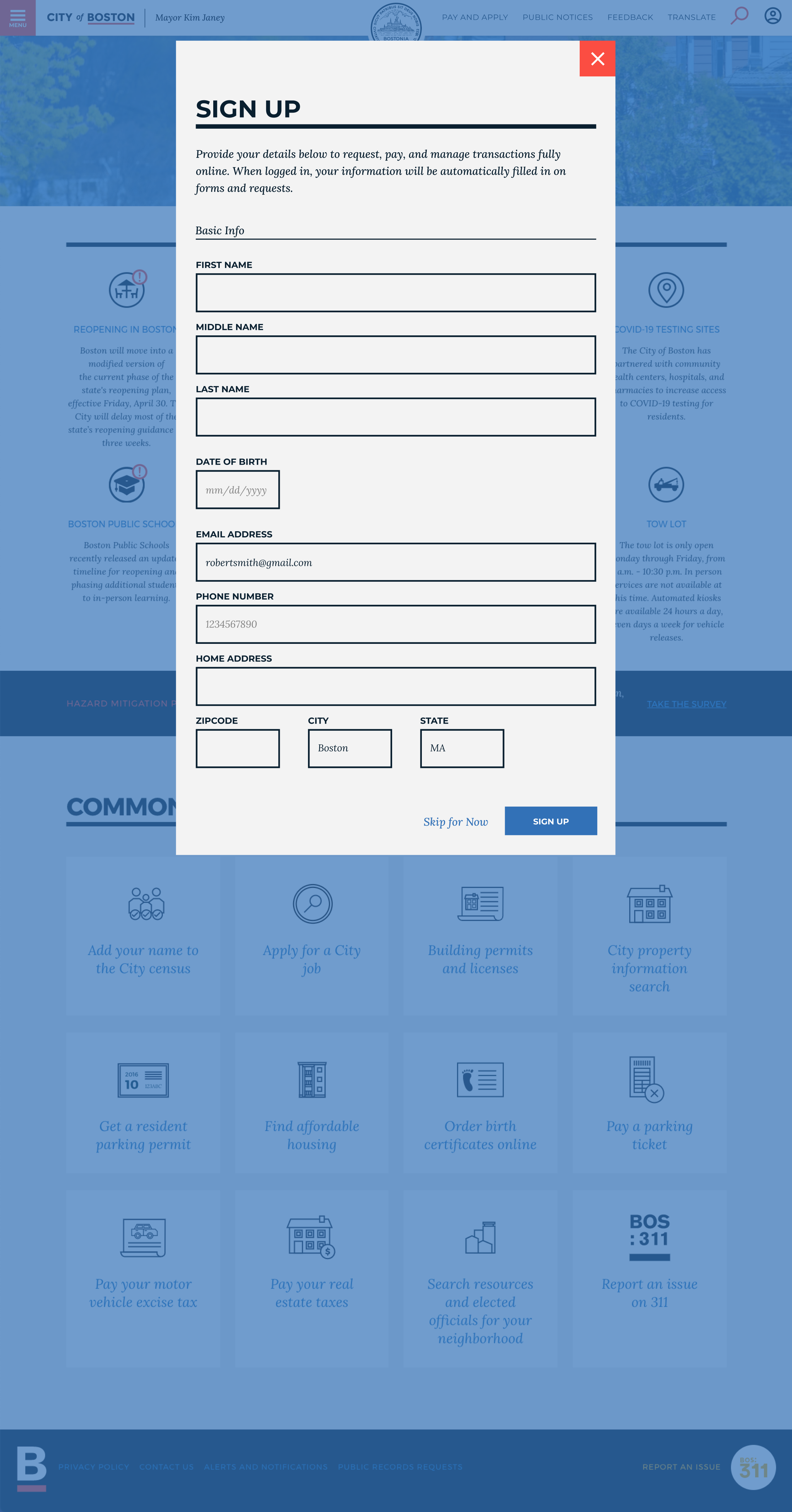
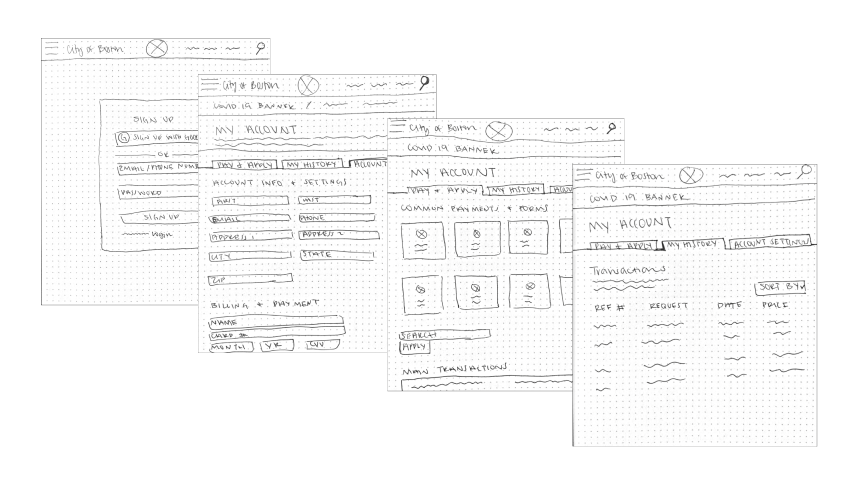
Referencing user dashboard patterns online for inspiration, I began sketching different design solutions. While sketching designs for the sign up screen, it occurred to me that if this were a real government project, I would need to confirm the technical feasibility of signing up using Google. A major user pain was forgetting usernames and passwords, especially for sites they don't use as often. However, government sites have strict rules regarding security and may not allow for this kind of sign in. Because I did not have any stakeholders to consult on this, I continued with the current design, keeping in mind I would need to balance user needs with business and technical needs in the future. Click the image below to enlarge.
Once I selected the sketches that would provide the smoothest user experience, I digitized them as mid-fidelity wireframes Figma.
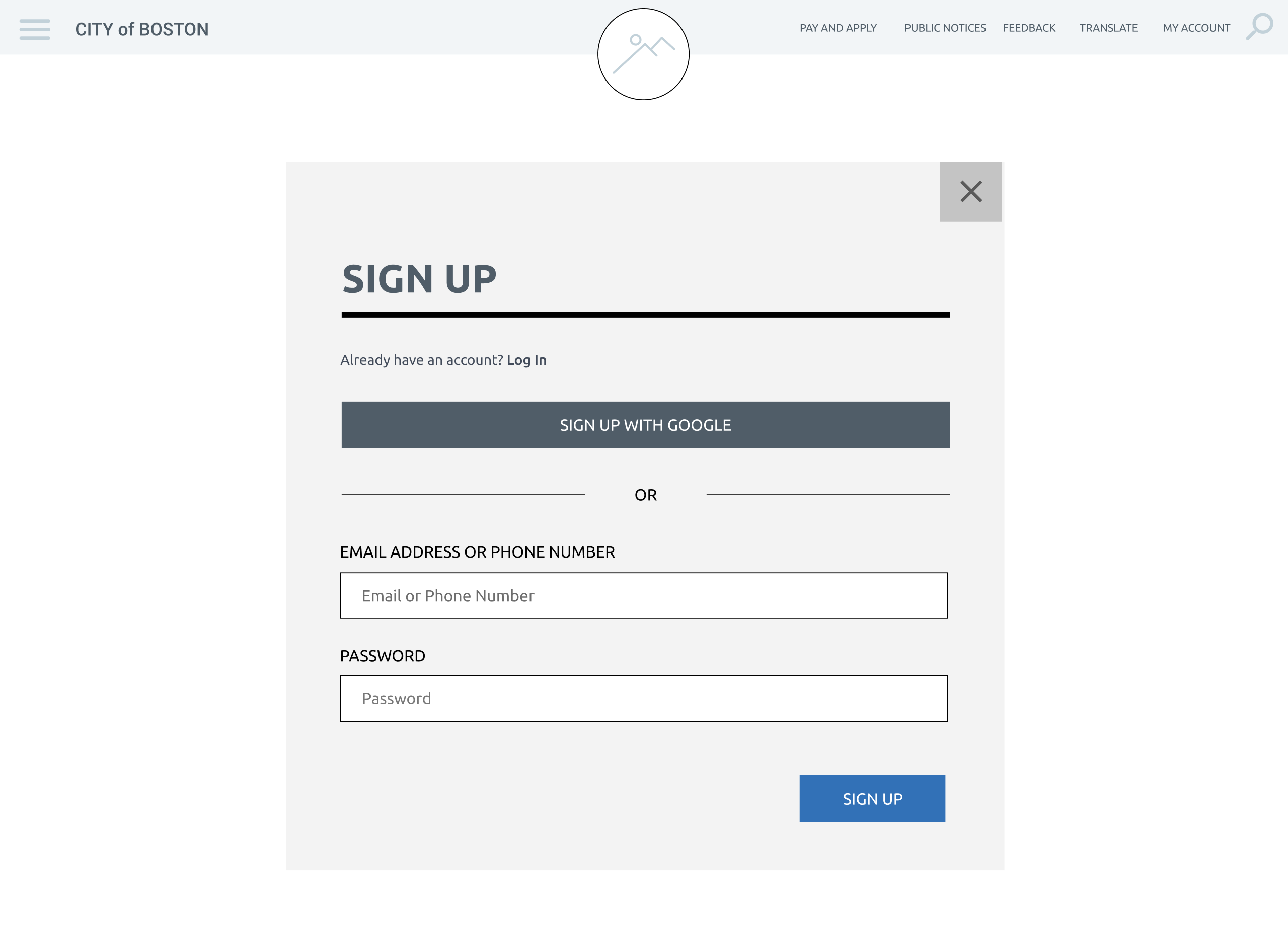
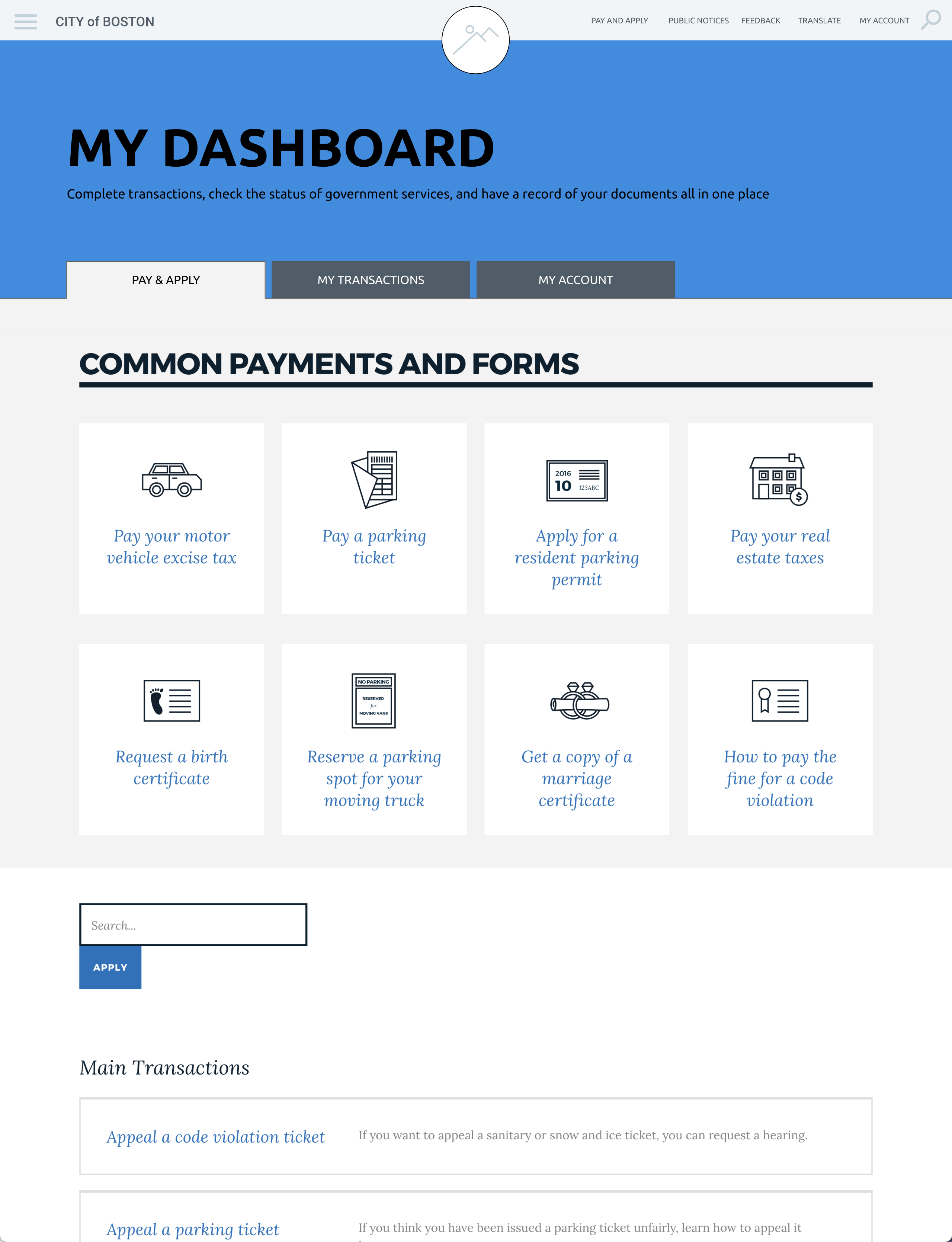
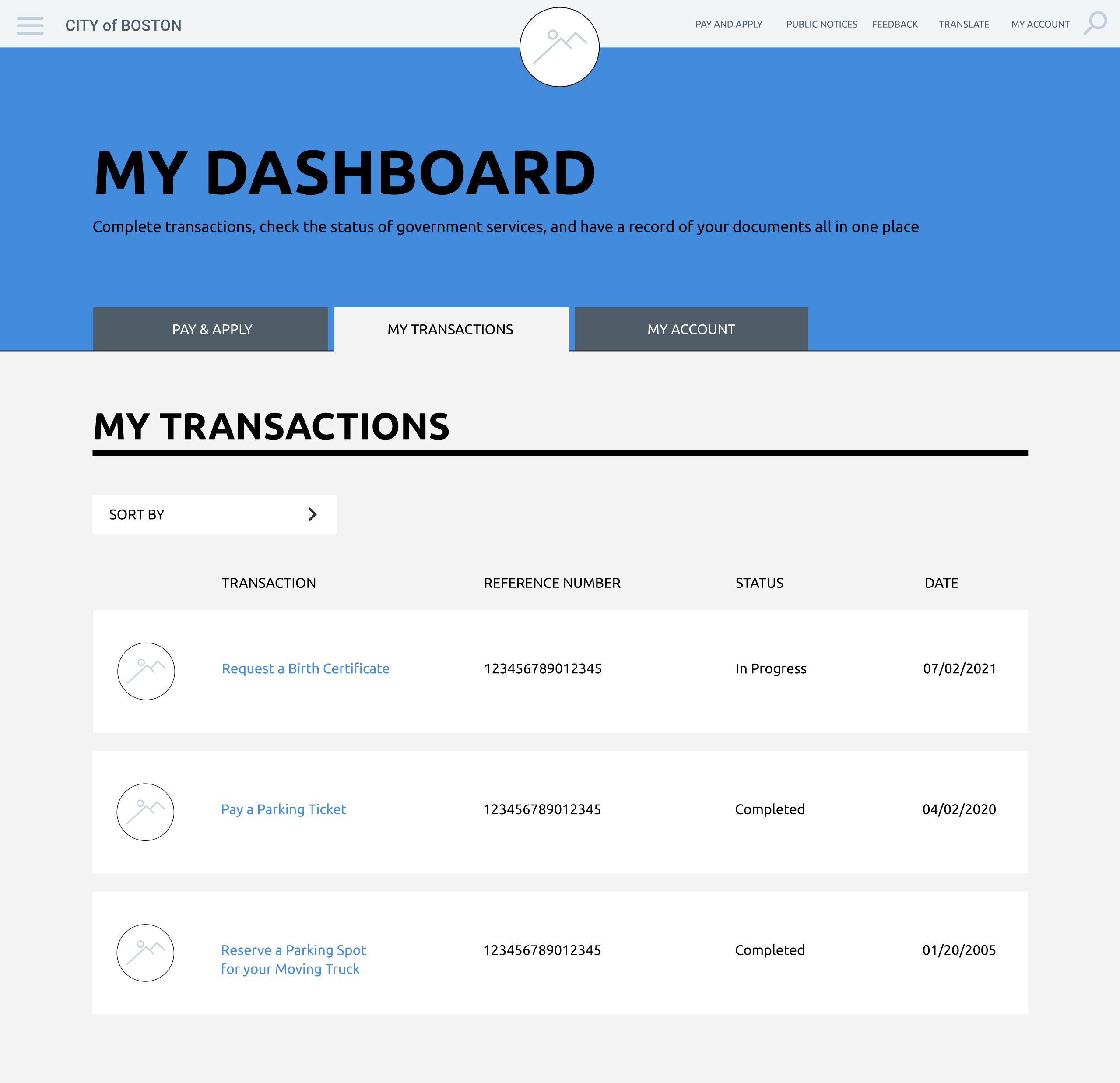

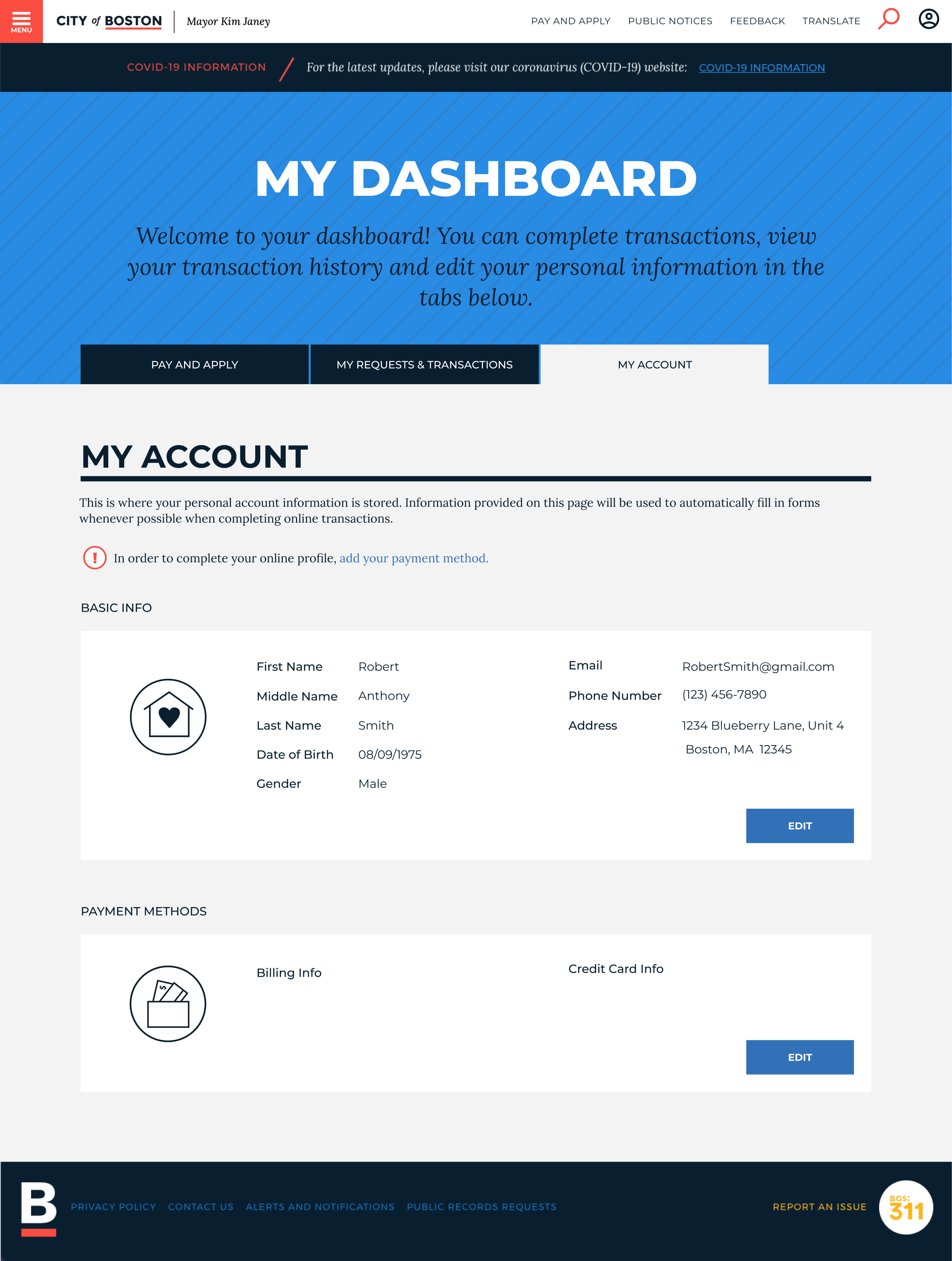
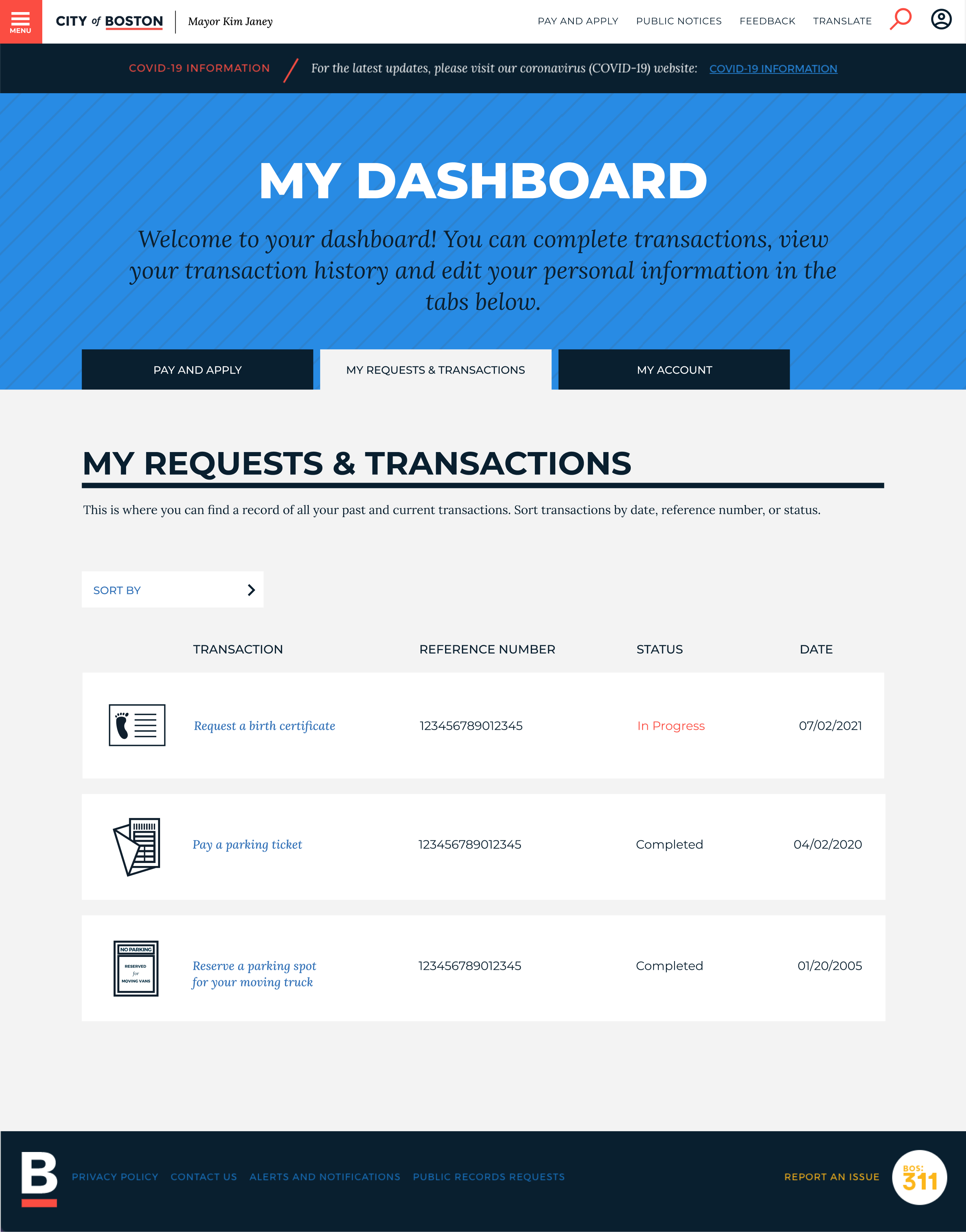
After building out the wireframes, I added the UI designs by referencing Boston.gov's established branding guidelines outlined on their website.
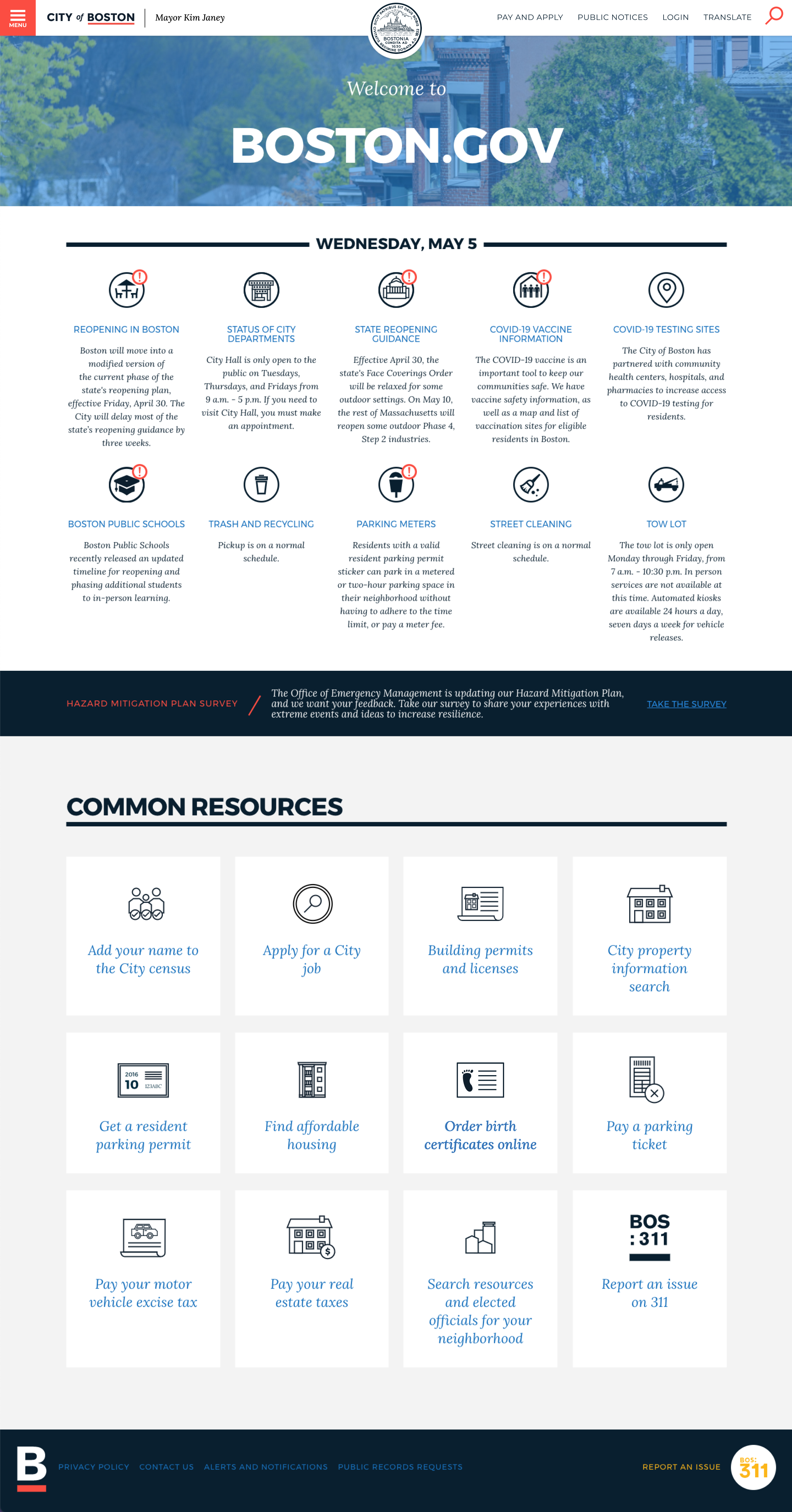

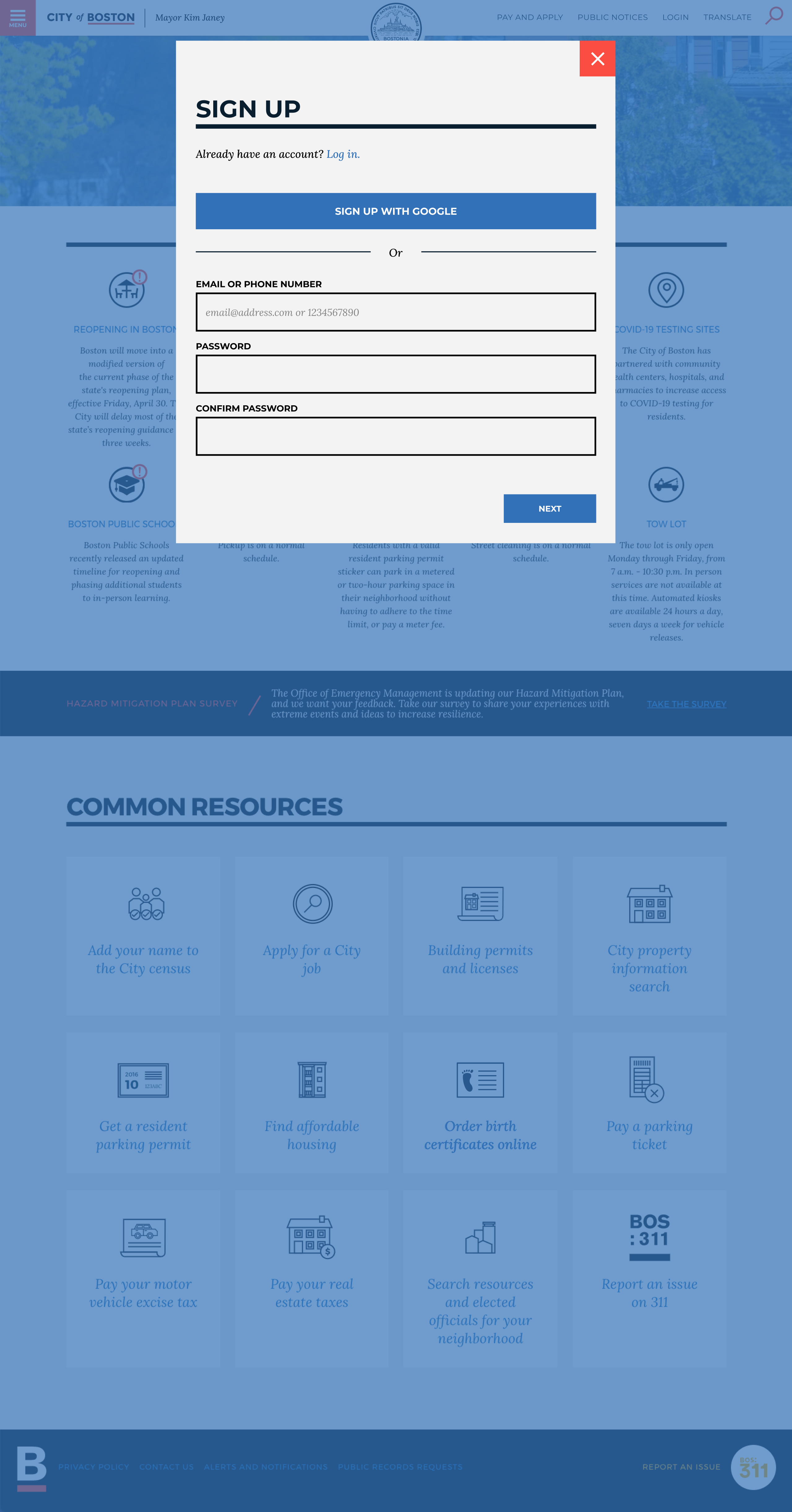
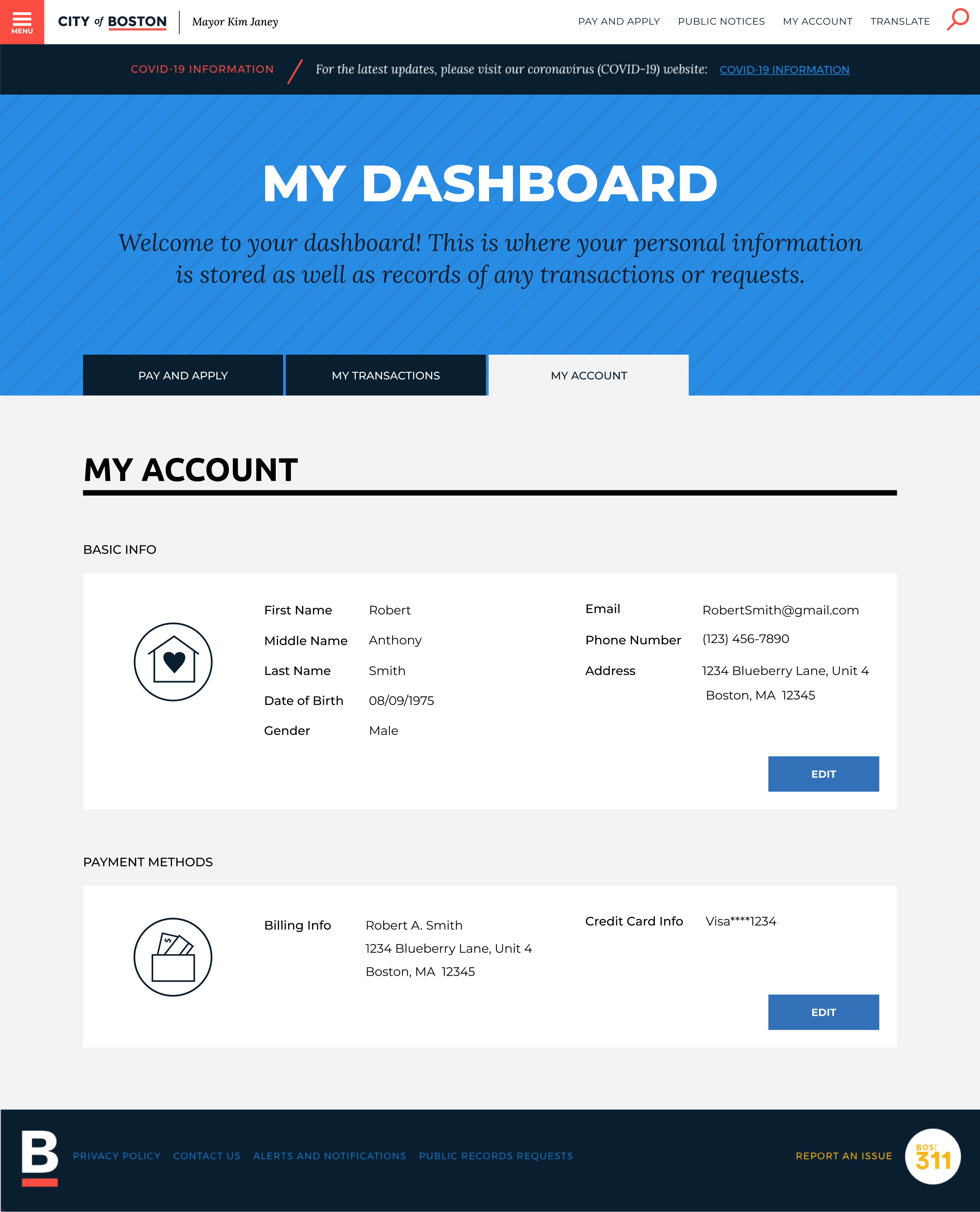
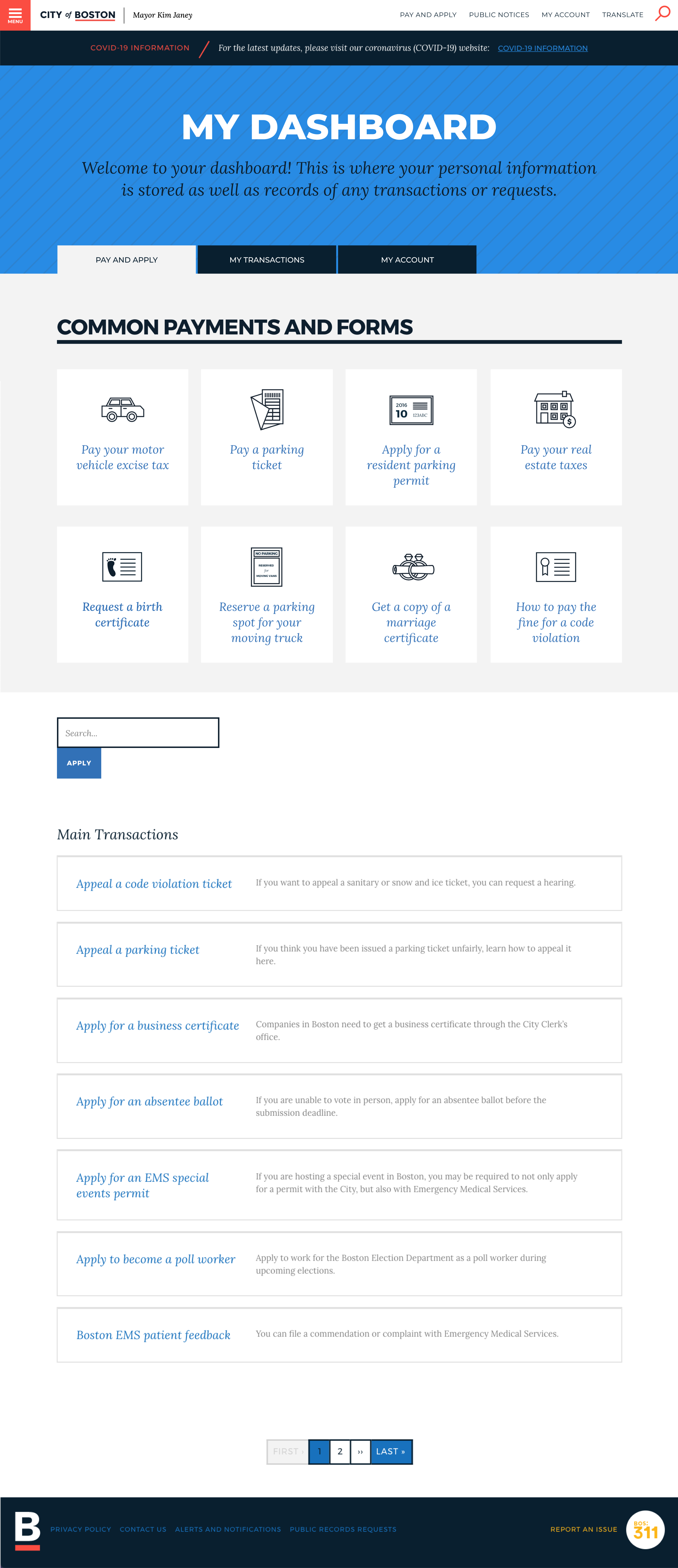
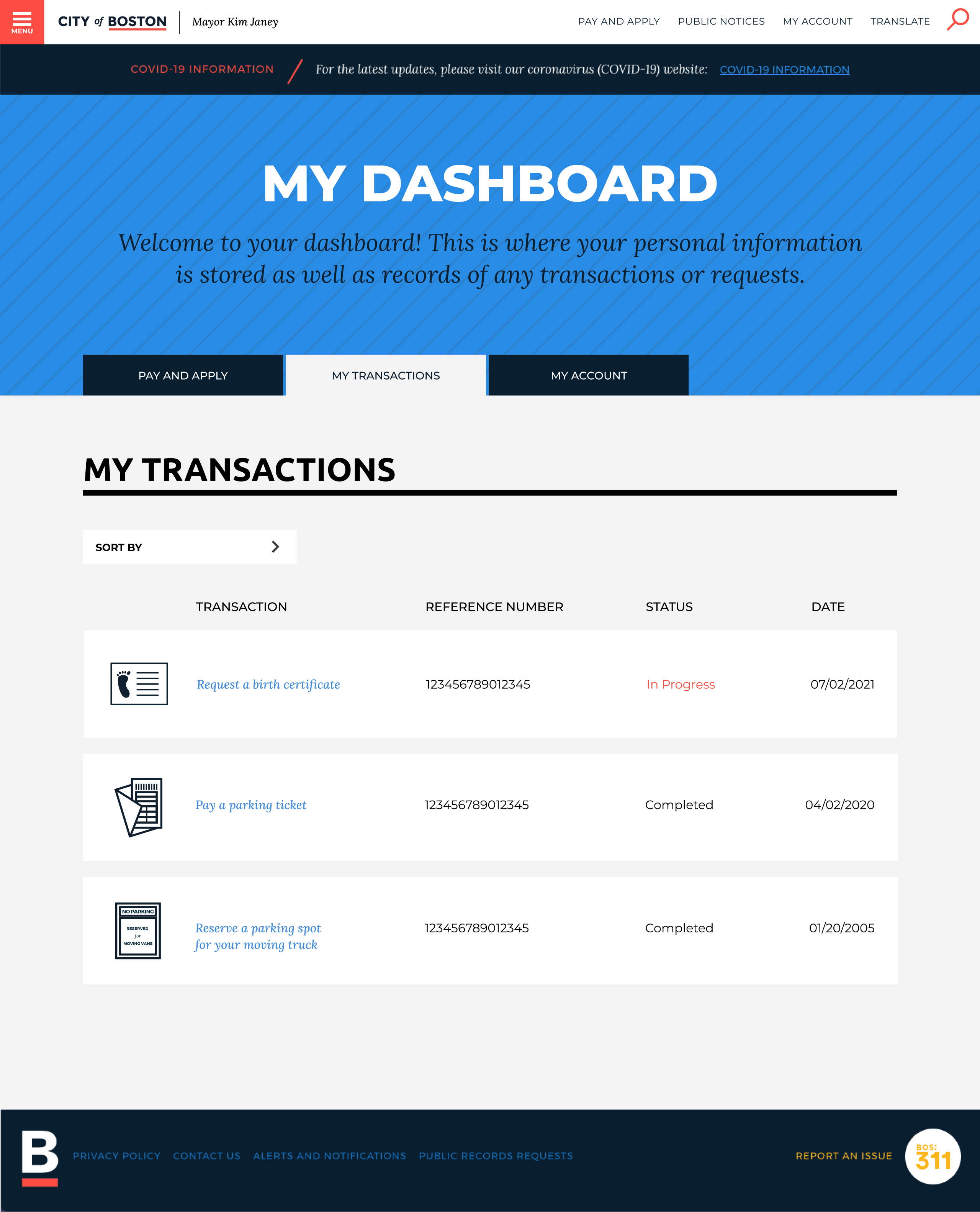
From the UI designs, I created a high fidelity clickable prototype in Figma. Using this prototype, I could quickly map out interactions and test the site on real users to gather feedback and uncover usability issues.
To validate my design solutions, I recruited 5 participants, ages 18 and up, to test out the prototype. Because I wasn't able to conduct all tests in person, I used Maze and Google Meet to moderate the remote tests.
I then created an affinity map to sort, organize and rank the user testing feedback. Click the image below to enlarge.
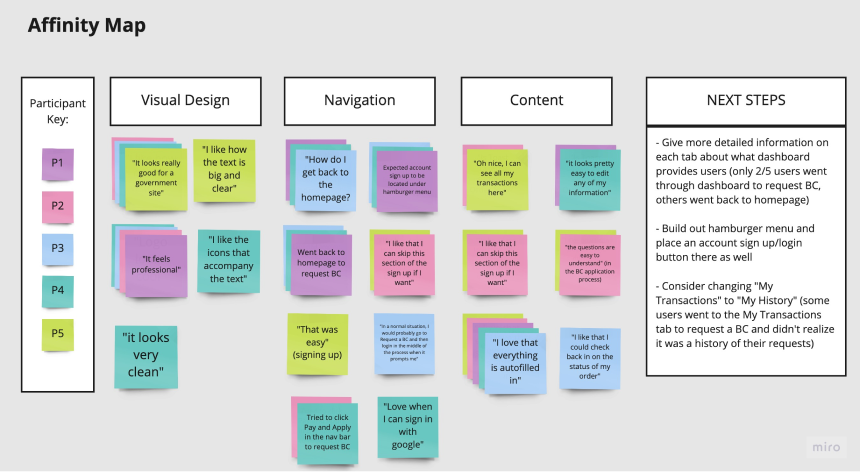
Based on the user testing results and affinity map rankings, I made priority revisions to the product: